When restoring an MS SQL database (.bak file), you could encounter a scenario where the database becomes stuck in the restoring state.
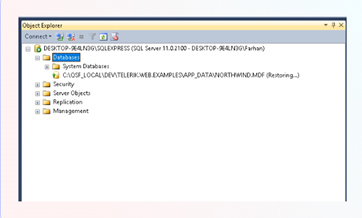
This circumstance typically arises when the restoration procedure is problematic or has not been finished. Your database becomes unreachable as a result. How to troubleshoot a SQL database that is stuck in the restoring state will be covered in this post.
Why does your SQL database become stuck in the restoring state?
Understanding the reasons behind the SQL database stuck in the restoring state issue is crucial first. This problem could occur,
- If you’ve selected the NORECOVERY option while restoring a full backup.
- If there is corruption in the backup file.
- If there are issues with the RESTORE command (when using the T-SQL statements).
- If the backup restoration process has failed unexpectedly.
Methods to Troubleshoot and Fix SQL Database Stuck in Restoring State Issue
If your database is stuck in the restoring state, then you can first check and make sure the syntax of RESTORE command that you are using to restore backup (if using T-SQL) is correct. If this is not the case, then follow the below methods.
Method 1: Restore Database by using WITH RECOVERY Option
Your SQL database can get stuck in the restoring state if you've selected the NORECOVERY option when restoring multiple backup files. The NORECOVERY option keeps the state of database in 'recovery' to allow restoring of additional backups and prevent users from accessing the database. You can change the state of database from RESTORING to Online by restoring the database with the ‘WITH RECOVERY’ option. To do this, follow the below steps:
- Open SQL Server Management Studio (SSMS) and connect to the server instance.
- Go to the Object Explorer and right-click on the database node.
- Select Tasks and click Restore > Database.
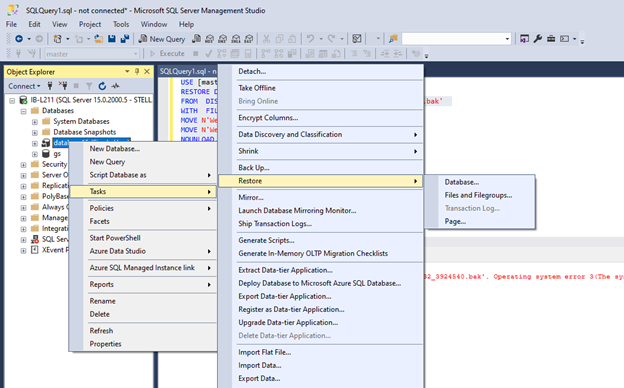
In the Restore Database window, click on Source to select the Full Backup file that you want to restore and then select the destination. Click OK.
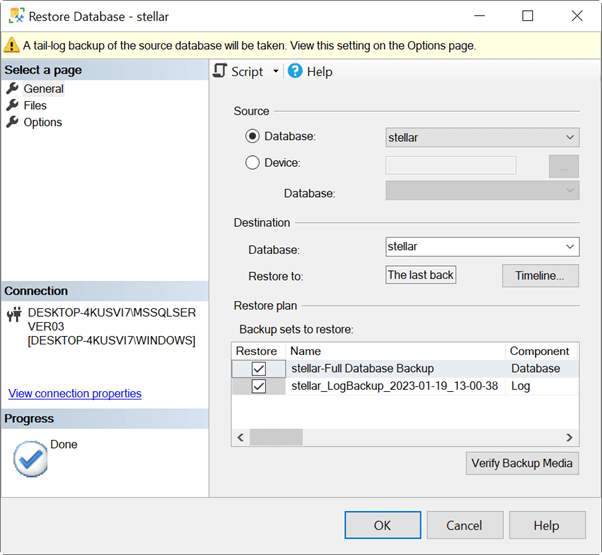
- You can see all the details about the selected backup file under the Backup sets to restore section.
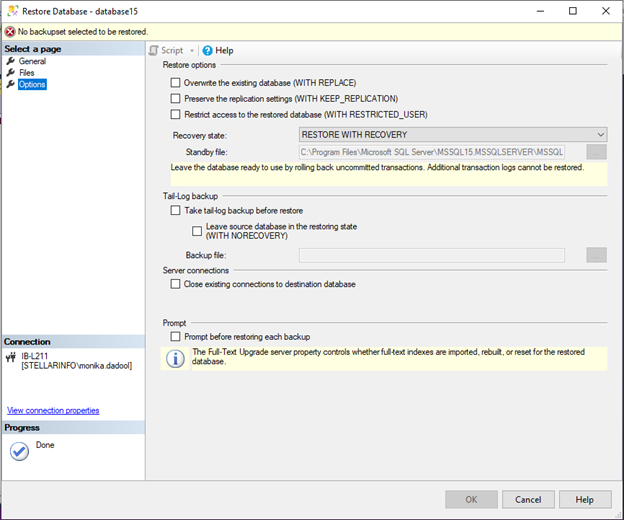
- Now, click on Options under Select a page.
- On the Options page, click RESTORE WITH NORECOVERY in the Recovery state field and then click OK.
- Next, follow the same procedure to restore other backups (apart from the final backup file) using the WITH NORECOVERY option.
- After all the backups have been restored, use the WITH RECOVERY option to restore the last backup file. To do this, from the Options page, click RESTORE WITH RECOVERY and then click OK.
Method 2: Drop and Restore the SQL Database
If the database is stuck in the restoring state due to incomplete restore operation, you can try to drop the database and then restore it from a valid backup. It is recommended that you perform this operation if you have all the backups. Here are the steps to drop and restore the SQL database:
- In the Object Explorer, connect to an instance of the SQL Server Database Engine and then expand it.
- Now, right-click on the database which is stuck in restoring state and click the Delete option.
- A confirmation window is displayed. Click Yes. This will delete the database.
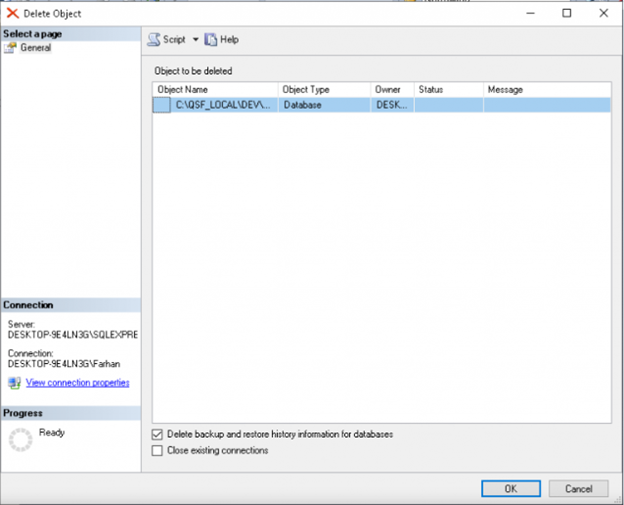
Now, you can restore the same database from the backup. For this, you can use the below command:
USE [master]
RESTORE DATABASE [bank121] FROM DISK = N'D:\Internal\BackupfileRD.BAK'
WITH FILE = 1, MOVE N'bank121' TO N'C:\Program Files\Microsoft SQL Server\MSSQL15.MSSQLSERVER\MSSQL\DATA\bank121.mdf',
MOVE N'bank121_log' TO N'C:\Program Files\Microsoft SQL Server\MSSQL15.MSSQLSERVER\MSSQL\DATA\bank121_log.ldf',
NOUNLOAD, STATS = 5
GO
Method 3: Check the Backup File Integrity
If the database is still in the restoring state and is not accessible after the restore, there is a chance that the backup file is corrupted or damaged. You can check the integrity of backup file by using the RESTORE VERIFYONLY statement (see the below example).
RESTORE VERIFYONLY FROM DISK = 'D:\AdventureWorks.bak';
GO
You can use an expert SQL database recovery program to fix the.bak file if the backup file is corrupted. One such program that can recover data from faulty backup files and store it in a new database file is Stellar Repair for MS SQL Technician. All types of corrupt backups, including Full, Differential, and Transaction Log, can be repaired. Additionally, it has full integrity repair and recovery capabilities for SQL database files.
In conclusion
According to the article, incomplete restore procedures, improper use of the NORECOVERY option, corruption in the backup file, or issues with the RESTORE command are typically the causes of a SQL database becoming stuck in the Restoring stage.
HostForLIFE.eu SQL Server 2022 Hosting
HostForLIFE.eu is European Windows Hosting Provider which focuses on Windows Platform only. We deliver on-demand hosting solutions including Shared hosting, Reseller Hosting, Cloud Hosting, Dedicated Servers, and IT as a Service for companies of all sizes.